
Stringing is a common 3D printing problem. You see thin plastic threads between parts of a print, like spider webs. This happens when melted filament leaks from the nozzle during movement. Learn how to fix stringing and prevent it between gaps or travel moves.
Stringing usually happens due to high nozzle heat, weak retraction settings, or wet filament. Fast or long moves can also cause it. These issues are common for beginners and experienced users.
Fixing stringing saves time and money. You spend less time cleaning prints. You waste less filament. Clean prints also look more professional. This matters for home projects and business orders.
What Is Stringing in 3D Printing?
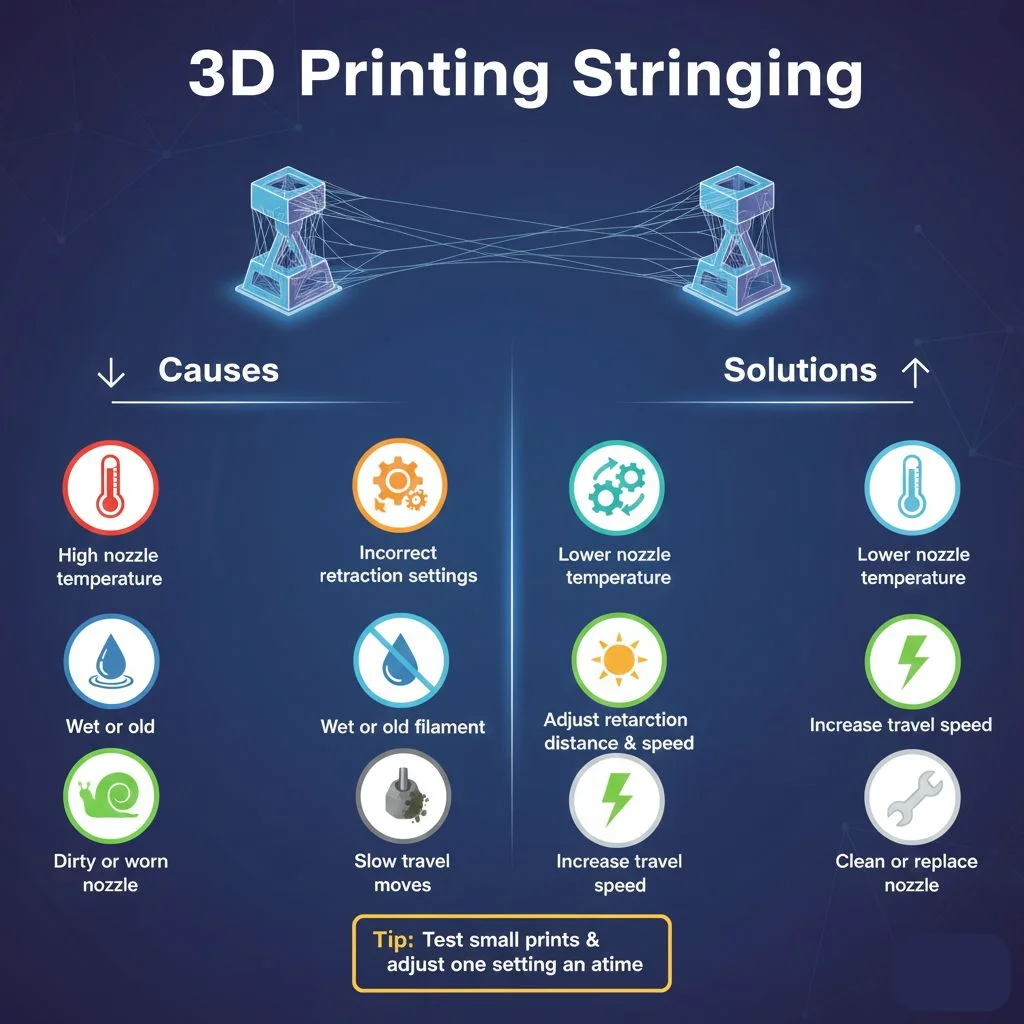
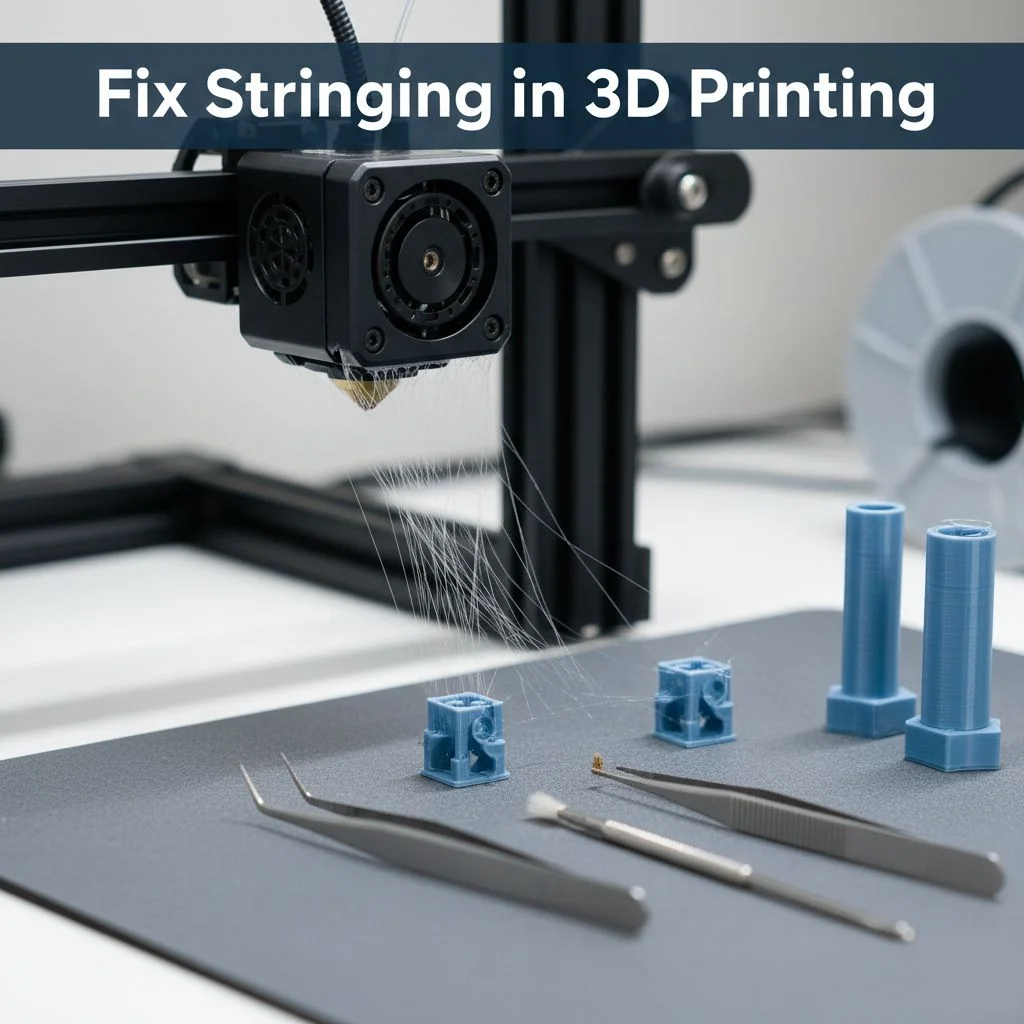
Stringing is when thin, hair‑like threads of plastic appear on a 3D print where they shouldn’t be. These tiny strands stretch between parts of the model. It looks like cobwebs on the surface and edges.
This happens when melted filament oozes out of the printer’s nozzle as it moves from one section to another without printing. The plastic drips and leaves fine threads behind.
Stringing can make a print look messy and less smooth. It often reduces the sharpness of small details and raises cleanup time after the print is done.
You can see stringing on most FDM 3D printers, including popular hobby machines. People report stringing on models like Creality Ender, Prusa i3, Anycubic, and Bambu Lab printers when settings aren’t tuned correctly. Even good printers can string when the temperature, speed, or retraction isn’t right.
Main Causes of Stringing
Nozzle Temperature Too High
When the nozzle temperature is too hot, the filament melts too much and becomes very runny. This liquid plastic can drip as the print head moves, leaving thin strands between printed parts. Keeping the temperature within the filament’s recommended range helps prevent this issue.
Retraction Settings Not Correct
Retraction is when the printer pulls back the filament before moving to a new spot. If the distance or speed is too low, filament oozes out during travel. Incorrect retraction settings are one of the most common reasons for stringing.
Wet or Old Filament
Filament can absorb moisture from the air. Wet filament creates steam when heated, which pushes melted plastic out unevenly. Old filament may also degrade, causing inconsistent flow and string formation.
Fast Travel Moves
If the printer moves too slowly between areas, melted plastic has time to leak from the nozzle. Adjusting travel speed can reduce stringing and improve the overall print quality.
Dirty or Worn Nozzle
A nozzle with residue, dirt, or wear cannot control the flow of filament well. This leads to tiny droplets escaping and forming strings. Regular cleaning or nozzle replacement keeps prints clean and consistent.
How to Fix Stringing: Proven Solutions
Lower the Nozzle Temperature
Why heat causes extra plastic flow
When the nozzle is too hot, filament melts too much. It drips as the print head moves, leaving thin strands between parts. This creates stringing that ruins your print.
How to find the right temperature
Start by lowering your usual printing temperature by 5–10 °C. Print a small test piece. Watch for stringing. If layers still stick well and stringing drops, you’ve found a good temperature. Every filament type behaves differently, so test carefully.
Adjust Retraction Settings
Retraction distance explained simply
Retraction is when the printer pulls filament back before moving across open spaces. Pulling it back slightly reduces extra plastic from oozing out.
Retraction speed basics
Retraction speed controls how fast the filament is pulled. Too slow lets filament drip. Too fast can cause jams. Adjust slowly and test each change.
How small changes make big improvements
Even tiny tweaks can remove stringing. Print simple objects to check results. Often, minor adjustments fix stringing without other changes.
Dry Your Filament Properly
Why moisture causes stringing
Filament absorbs moisture from air. When heated, water turns to steam and pushes molten plastic out. This leaves unwanted strings.
Easy ways to dry filament at home
Use a food dehydrator, an oven at low heat, or a filament dryer. Always stay within the filament manufacturer’s recommended temperature.
Storage tips for USA climates
Keep filament in airtight containers with silica gel packs. Humid areas in the USA can quickly add moisture to filament, so proper storage is key.
Increase Travel Speed
How faster moves reduce stringing
Travel speed is the movement between printed areas. Slow moves allow melted filament to drip, creating strings. Faster movement reduces this risk.
Safe speed range for most printers
Increase travel speed gradually. Test each step. Most printers handle higher non-print moves without affecting print quality.
Clean or Replace the Nozzle
Signs of a clogged nozzle
A nozzle with clogs or debris causes uneven filament flow. This often leads to stringing or blobs.
Easy cleaning methods
Warm the nozzle and brush it with a brass brush. Use a “cold pull” to remove trapped debris from inside.
When replacement is better
If cleaning doesn’t solve the issue or the nozzle is worn, replace it. A new nozzle improves flow and reduces stringing more effectively than settings adjustments alone.
Best Slicer Settings to Reduce Stringing
Choosing the right slicer settings is one of the easiest ways to reduce stringing in 3D printing. Good settings make prints cleaner, save filament, and prevent frustrating post-print cleanup. Beginners can get excellent results without touching advanced options.
Retraction Is Key
Retraction is the most important setting to control stringing. It pulls the filament back slightly when the nozzle moves across gaps. This stops melted plastic from oozing and leaving unwanted strings.
- Retraction Distance: Bowden-style extruders need longer pull than direct-drive printers. Start with the manufacturer’s recommendation.
- Retraction Speed: Too fast can damage the filament. Too slow may not prevent oozing. Test small adjustments for best results.
Focusing on retraction first gives noticeable improvements and is beginner-friendly.
Travel Speed and Path
Travel speed controls how fast the nozzle moves between areas without printing. Faster movement reduces stringing because the filament has less time to drip.
- Use combing mode or “avoid crossing perimeters” in your slicer. These options keep the nozzle inside printed areas, protecting visible surfaces from stray strings.
Wipe and Coasting (Optional)
Some slicers include wipe moves and coasting.
- Wipe moves sweep the nozzle tip across printed areas to remove extra filament.
- Coasting stops extrusion slightly before the nozzle finishes a segment, reducing ooze.
Both features help, but beginners can start with retraction and travel speed first.
Keep It Simple for Beginners
If you are new to 3D printing, focus on these three settings first:
- Enable Retraction
- Increase Travel Speed
- Use Combing Mode
These steps improve print quality and reduce stringing without overwhelming you with complex options.
Test Prints That Help Spot Stringing
Testing your 3D printer with small prints helps you identify stringing issues clearly and fix them faster.
Simple Test Models
- Use small models with towers, posts, or gaps between parts.
- Try a stringing tower or retraction test model.
- These prints force the nozzle to move across empty space, revealing fine threads.
- Prints are fast and use little filament, making trial and error easy.
How to Read the Results
- Inspect spaces between towers or posts for thin threads or unwanted strands.
- Fine threads indicate mild stringing.
- Thicker blobs show more severe stringing issues.
- Clean gaps mean your retraction and temperature settings are good.
- Note the string length, thickness, and pattern to identify what to adjust.
When to Adjust Again
- Change one setting at a time: retraction distance, speed, or nozzle temperature.
- Run the same test print after each adjustment.
- Compare results and see if stringing improves.
- Continue adjustments until lines are clean and smooth.
Stringing Tips for Popular Filaments
PLA Stringing Fixes
PLA is easy to print but can still string if settings are off. Stringing happens when melted plastic drips during head movement.
Lower Nozzle Temperature
High heat makes PLA ooze. Reduce the temperature in small steps until stringing disappears.
Adjust Retraction Settings
Increase retraction distance and speed slightly. This pulls the filament back to prevent leaks.
Boost Cooling
PLA solidifies faster with strong fan cooling. Better cooling reduces fine strings between parts.
Use Combing or Avoid Crossing Perimeters
Set your slicer to keep the nozzle inside printed areas. Fewer empty moves mean less stringing.
PETG Stringing Fixes
PETG is stickier than PLA and prone to stringing if not handled properly.
Keep PETG Dry
Moist filament causes bubbles and stringing. Store spools in a dry box with desiccant packs.
Tune Retraction
Slight changes in retraction distance and speed can reduce strings. Test small adjustments for best results.
Lower Nozzle Temperature
Too much heat makes PETG drip. Reduce the temperature gradually while testing print quality.
Speed Up Travel Moves
Faster movements between print areas leave less time for filament to ooze.
ABS Basic Tips
ABS can string, though less than PETG. Managing heat and retraction is key.
Moderate Nozzle Temperature
Excessive heat causes oozing. Reduce temperature slowly to control stringing without harming layer bonding.
Use Retraction Settings
Enable or increase retraction. This pulls filament back, stopping unwanted trails during travel.
Balance Cooling and Enclosure
ABS needs a stable warm environment. Too much cooling may damage layers. Find a safe balance.
Keep Filament Dry
ABS absorbs moisture easily. Dry filament prevents bubbles and reduces stringing.
Common Mistakes to Avoid
Changing too many settings at once
One big mistake many makers make is tweaking many slicer settings all at once. When you change temperature, retraction, and travel speed at the same time, it becomes hard to know what really made things better or worse. Changing one setting at a time lets you see if stringing improves or gets worse. Small steps help you learn what works for your printer and filament.
Ignoring filament quality
Bad or old filament can make stringing worse. Cheap filament often has uneven thickness and impurities. Moisture in filament can turn to steam and push melted plastic out of the nozzle. This makes stringing more likely. Storing filament in a dry box or using fresh, quality filament can reduce these problems.
Copying settings without testing
Copying settings from online posts or other printers might not work for your setup. Every printer and filament behaves differently. What works for someone else might not work for you. Always test new settings with small prints first. This helps you find the best retraction, temperature, and travel settings for your own machine.
Final Thoughts: How to Fix Stringing
Clean 3D prints are not just for experts. Even beginners can achieve smooth, professional-looking results with practice and care. Small changes, like adjusting retraction or lowering nozzle temperature, make a noticeable difference.
Patience is key. Rushing setups or skipping calibration often leads to stringing and failed prints. Testing settings step by step ensures each print comes out better than the last.
Achieving clean prints also saves time and money. Less cleanup, fewer wasted materials, and fewer failed prints help your projects stay efficient and cost-effective.
With consistent practice and attention, anyone can enjoy flawless 3D prints and a satisfying printing experience.
FAQs of How to Fix Stringing
What causes stringing in 3D printing?
Stringing happens when melted filament oozes out while the nozzle moves between sections of your print. This leaves thin threads connecting parts of the model. It usually occurs when the nozzle temperature is too high, retraction settings are off, or the filament is slightly wet. Slow travel movements and poor cooling can also make stringing worse. Identifying the main cause helps you fix it faster and keep prints clean.
How can I reduce stringing by adjusting temperature?
Lowering the nozzle temperature is one of the simplest ways to reduce stringing. Cooler filament is less likely to ooze during travel moves. Reduce the temperature in 5 °C steps and test small prints until strings disappear. Be careful not to go too low, or the filament may not stick properly to the print surface. This method works for most common filaments like PLA, PETG, and ABS.
What is retraction, and how does it prevent stringing?
Retraction pulls the filament back slightly into the nozzle as the printer moves across empty areas. This prevents melted plastic from leaking out and forming unwanted strings. Adjust the retraction distance and speed in your slicer, then test with small prints. Too much retraction can cause gaps or under-extrusion, so finding the right balance is key. Proper retraction makes prints look cleaner and sharper.
Can travel speed affect stringing?
Yes. Increasing travel speed reduces the time filament can ooze while the nozzle moves between parts. Start with moderate increases and observe the results. Too fast may shake or misalign your model, so adjust gradually. Balancing travel speed with retraction and temperature often eliminates stringing without sacrificing print quality.
Does filament moisture cause stringing?
Absolutely. Filament can absorb water from the air, especially nylon and PLA. Moist filament bubbles and oozes when melted, which increases stringing. Store your filament in airtight containers with desiccants, or dry it in a filament dryer before printing. Using dry filament improves print consistency and reduces unwanted threads between parts.
Can slicer features like combing or coasting help?
Yes. Combing keeps the nozzle inside printed areas, avoiding travel across empty spaces where strings form. Coasting stops extrusion slightly before the nozzle reaches a travel move, reducing pressure buildup. Both features are built into most slicers and work well when combined with proper retraction and temperature adjustments. They help produce cleaner prints with minimal post-processing.
Does cooling influence stringing?
Yes. Proper cooling solidifies the filament quickly, preventing it from stretching into strings. PLA benefits from strong cooling, while ABS and PETG may need less airflow. Adjust fan settings based on the material you are using. Good cooling works hand-in-hand with temperature and retraction settings to reduce stringing.
What quick tips do experienced users recommend online?
Experienced 3D printing enthusiasts suggest:
- Slightly lowering nozzle temperature to reduce oozing.
- Activating combing mode in the slicer to avoid travel across open spaces.
- Drying filament before printing if it’s absorbed moisture.
- Fine-tuning retraction distance and speed through test prints.
These small adjustments often make the biggest difference in producing string-free models.